Chat with Clavy
Ask questions, analyze documents, and search the web, with cited answers.
Use a chat for one-off questions and analysis: reading a few documents, researching a topic on the web, or working through a problem. For the same question across many rows, use a table instead.
Start a chat
Select New in the sidebar, type your question, and press Enter. Chats save automatically and appear under Chats in the sidebar.
Give it context
Select + in the message box:
- Add photos & files attaches up to 5 documents to a message. See Supported files and limits.
- Web search lets Clavy look up current information. Leave it off when the answer should come only from your files.
- Projects connects the chat to a project, so Clavy can search the project's files and read its tables.
You can also drag files straight into the chat.
Choose a model
Pick a model from the menu in the message box. Larger models are more thorough, smaller ones are faster and use fewer credits.
Check the sources
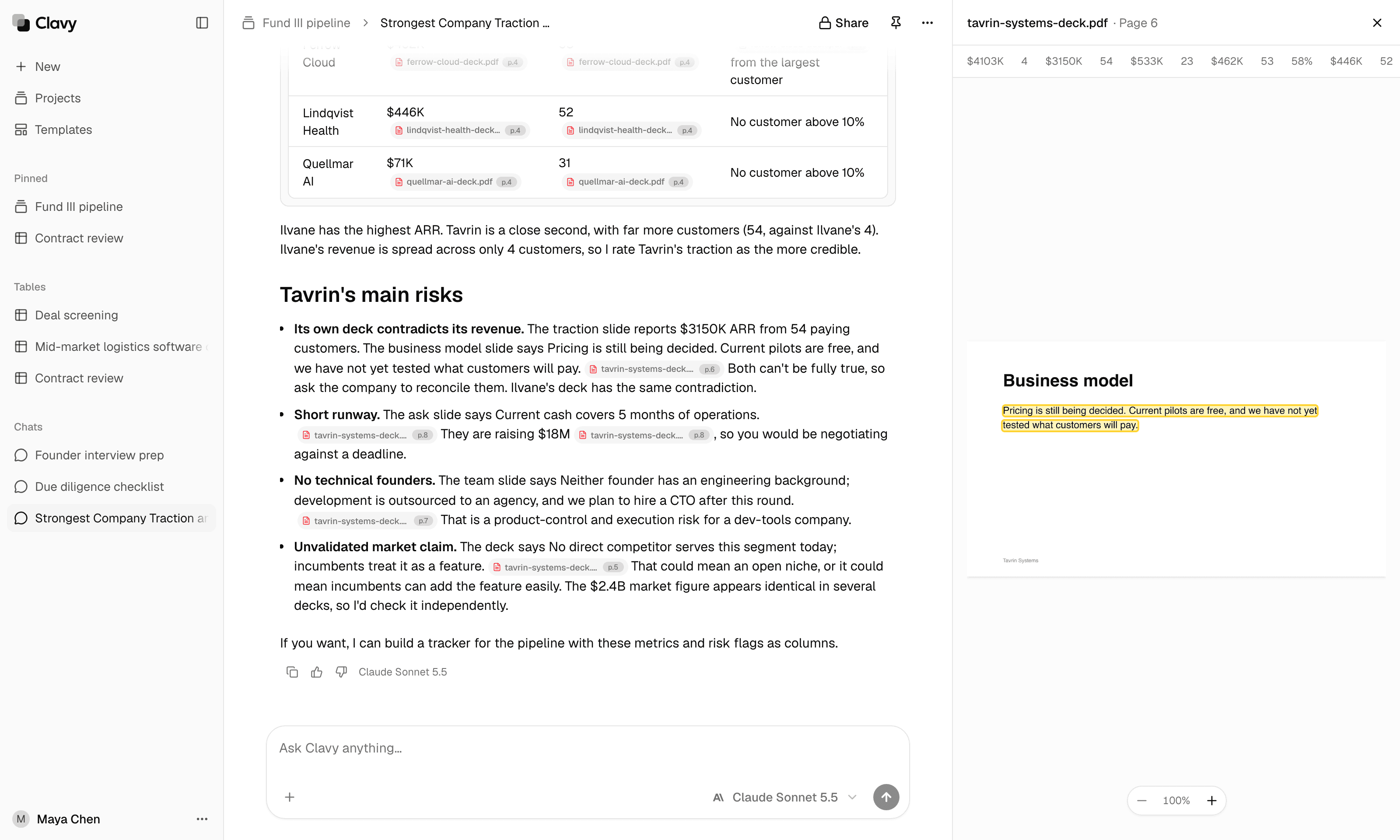
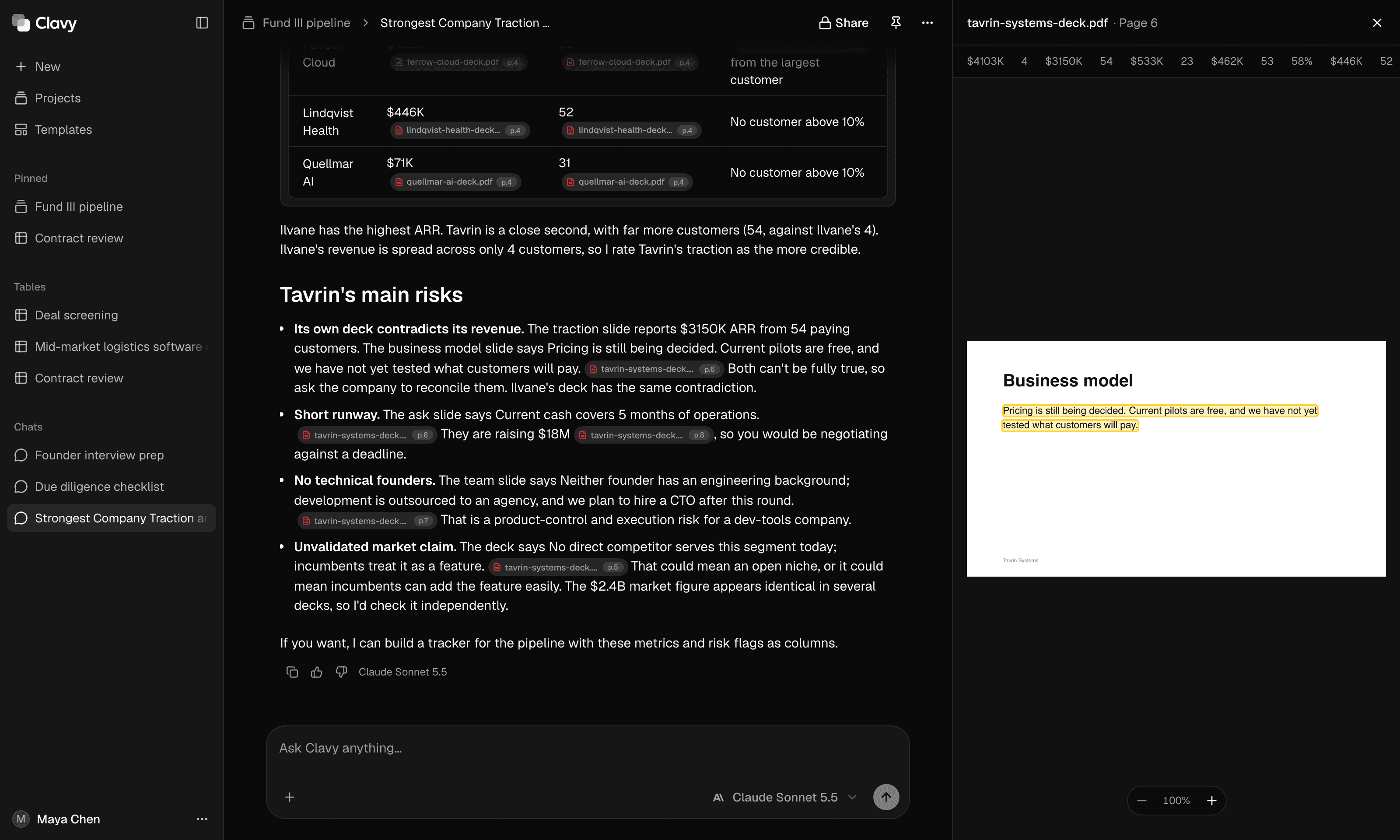
Answers cite their sources. Select a citation to open the web page, or the document at the cited passage, highlighted.
For a request that's open to interpretation, Clavy may first ask a few quick questions. Answer them, or reply in the chat to skip.
Work with messages
- Edit one of your messages to change the question and get a new answer.
- Copy a response, or rate it Helpful or Not helpful.
- Select the pin icon at the top of a chat to pin it to your sidebar, or open the three-dot menu next to it to rename it, add it to a project, or delete it.
Workspace instructions
Workspace admins can give Clavy standing instructions, like your terminology or preferred formats, that it follows in every chat. See Workspace instructions.