Ask Clavy in a table
Have Clavy build, fill, and analyze your table for you.
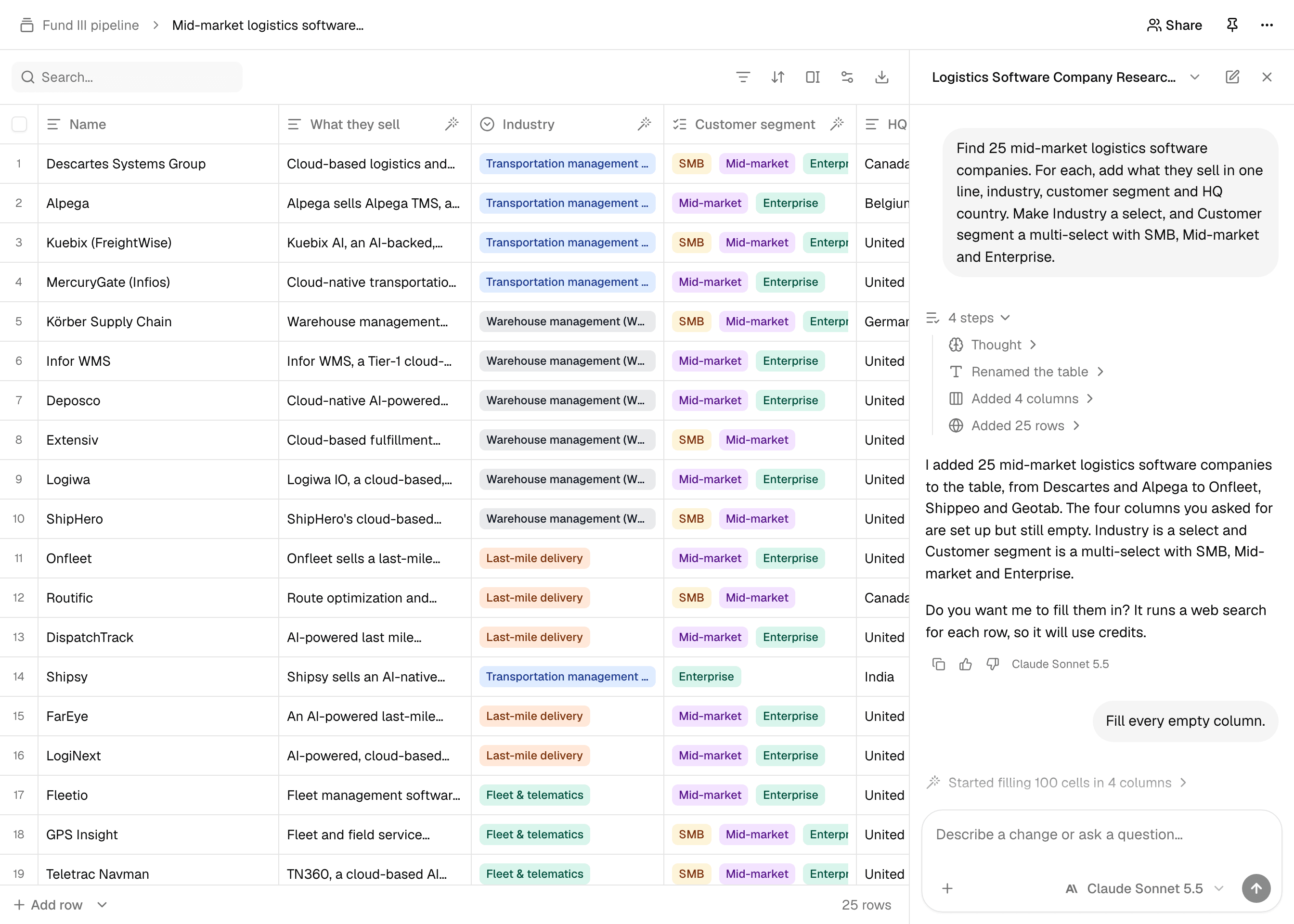
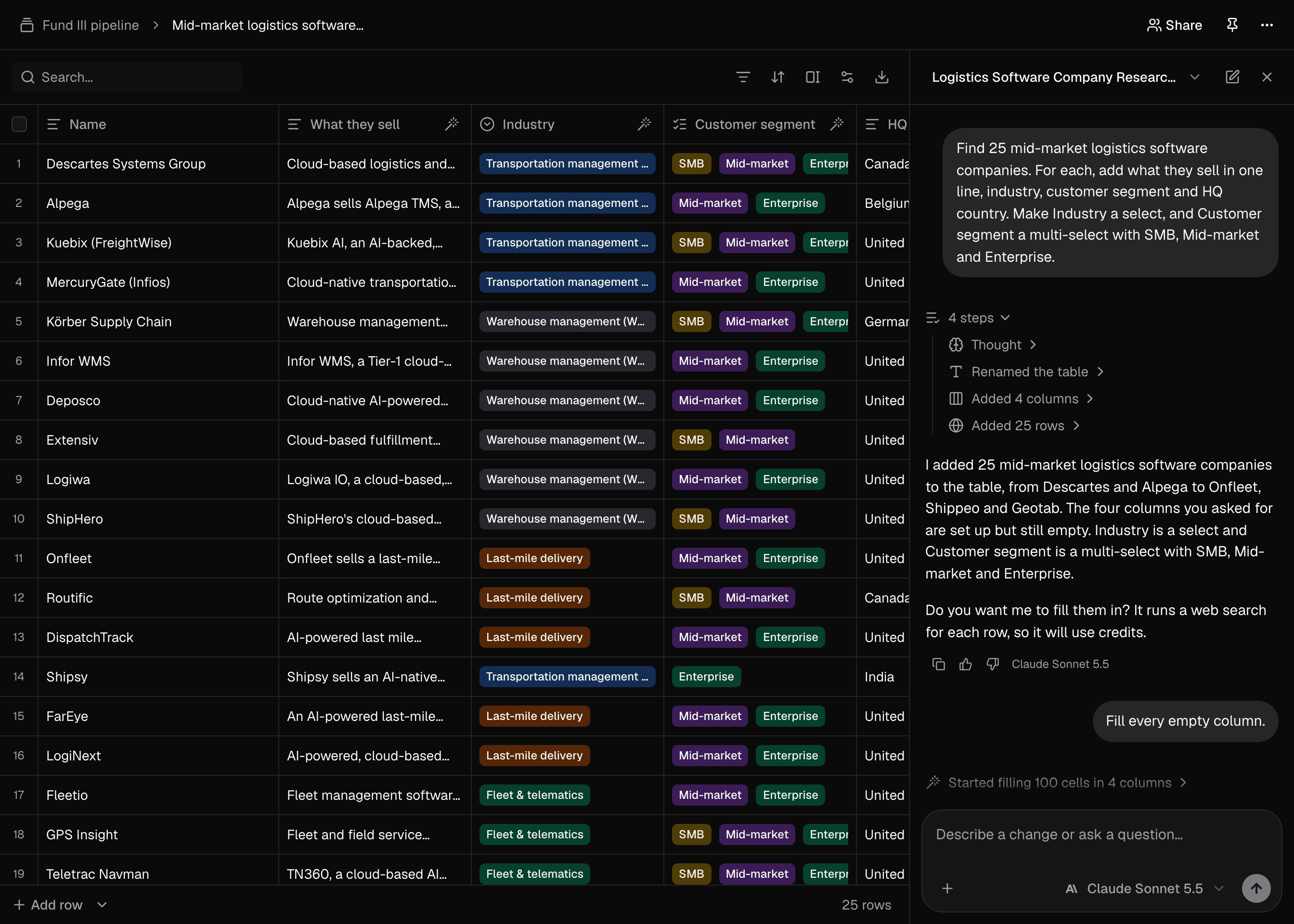
Select Ask Clavy above a table to open a chat beside it. Clavy can see the table and change it for you, so you can describe what you want instead of setting it up by hand.
What Clavy can do
- Set up the table. "Track Series A fintech companies in Europe with their investors and total funding." Clavy names the table and adds the columns, with their prompts and types.
- Add rows from the web. "Add 20 more companies that match." Clavy searches and adds real matches, up to 25 at a time.
- Change columns. Add, rename, reorder, or delete columns, or rewrite a prompt.
- Add and edit data. Paste in a list, or ask Clavy to correct specific cells.
- Fill columns. "Fill in the funding column." Clavy runs the columns you name.
- Answer questions. "Which of these companies raised in the last six months?" Clavy reads the table, and the files in it, and answers with the rows it used.
You can also drop files into the chat for more context.
Clavy asks before costly or destructive changes
Clavy asks for your approval before it deletes rows or columns, searches the web for new rows, or fills more than a handful of cells, since searching and filling use credits. Setting up or changing columns doesn't use credits until they run.
Good to know
- Clavy can't change your view, like filters, sorting, or hidden columns. Those are yours to set. See Sort, filter, and organize.
- Undo (Cmd+Z or Ctrl+Z) covers your own edits, not changes Clavy makes.
- Workspace instructions apply here too. See Workspace instructions.